

Guides
Step-by-step instructions for using ScriptChamp.
Real images from Google Docs.
Start here
Install ScriptChamp
ScriptChamp works in Google Docs on a desktop, laptop, or Chromebook.
- Open ScriptChamp in the Google Workspace Marketplace and click Install.
- Select your Google account and allow the permissions ScriptChamp needs to format your scripts.
- Open any Google Doc. Select Extensions > ScriptChamp > Open ScriptChamp.
Start your free trial
Try ScriptChamp Pro free for 7 days. No credit card required.
- Open ScriptChamp in any Google Doc.
- Type your email in the sidebar and click Start 7-day trial of ScriptChamp Pro.
- Every format and every Pro tool is yours for 7 days.
After your trial, free mode checks your script for formatting errors.
Buy or upgrade
Purchase a Single Format, Combo Pack, or ScriptChamp Pro to use ScriptChamp’s formatting tools, QuickWrite, and development and production docs.
Pay once. No subscription required.
- Your license key arrives by email.
- In the sidebar, click Already purchased? Paste your key and click Activate.
Every Single Format and Combo Pack purchase counts toward an upgrade to ScriptChamp Pro. Upgrade any time.
QuickWrite
Quick Draft
- Type your script using the simple guide for your format.
- Click Quick Draft.
- Your draft reformats into an industry-standard script. To return to the previous formatting, click Revert.
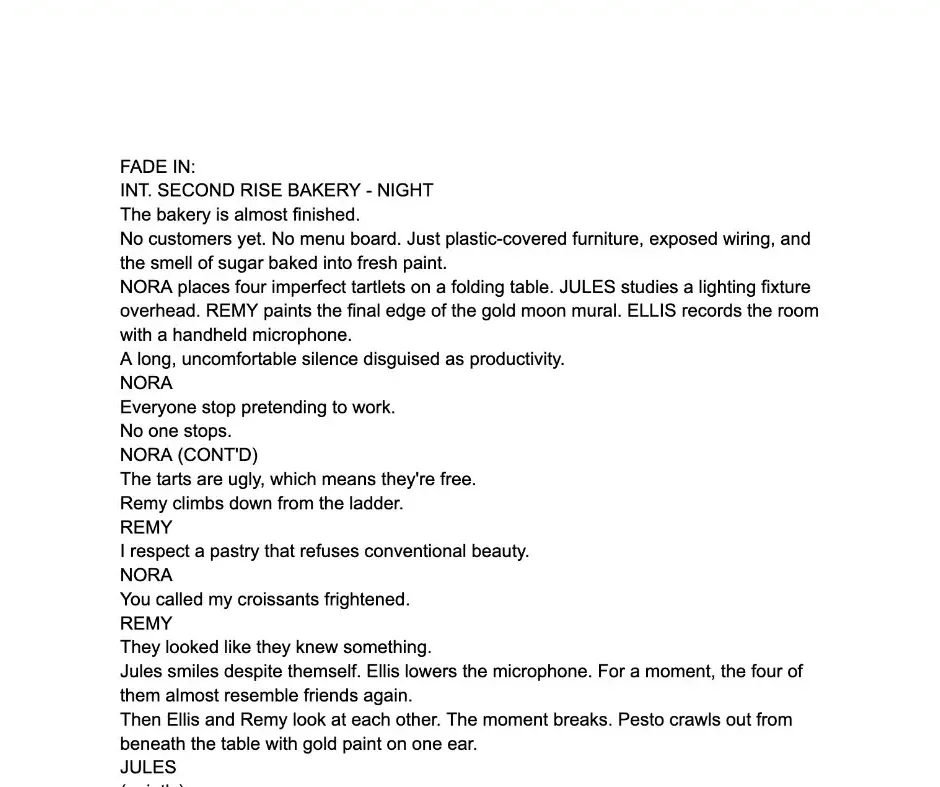
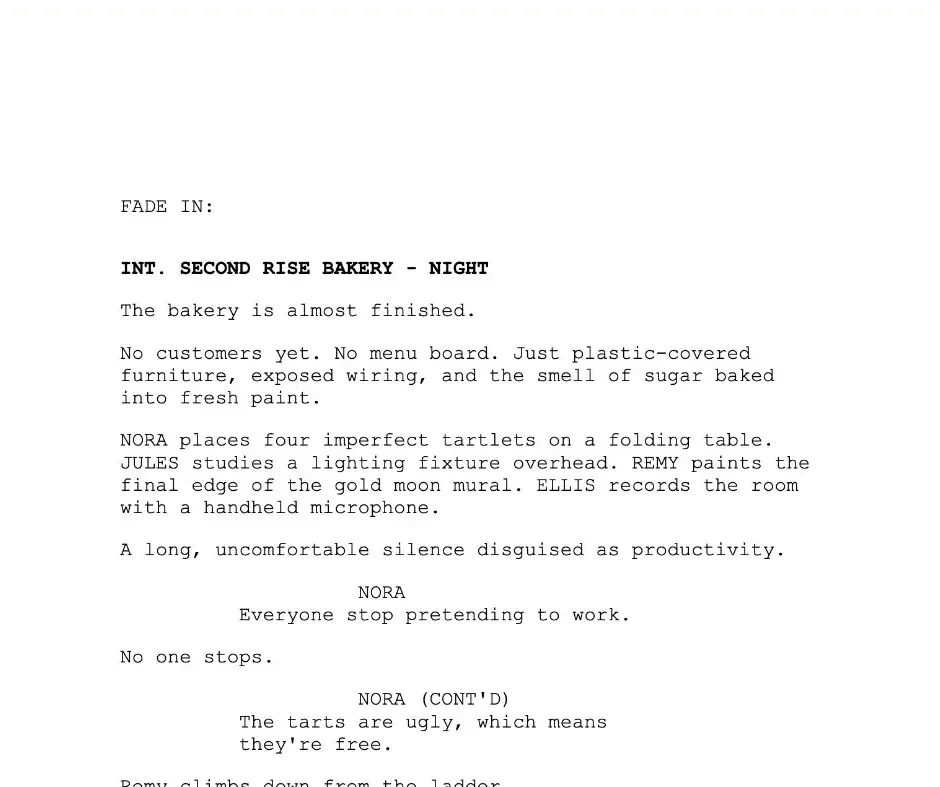
Quick Scene
- Add a custom template for a scene or page at your cursor.
- Click Quick Scene, set up the scene, then click Quick Scene again.
- Fill in the story.
In Comic Book, this tool is Quick Page. In Podcast, it is Quick Segment.

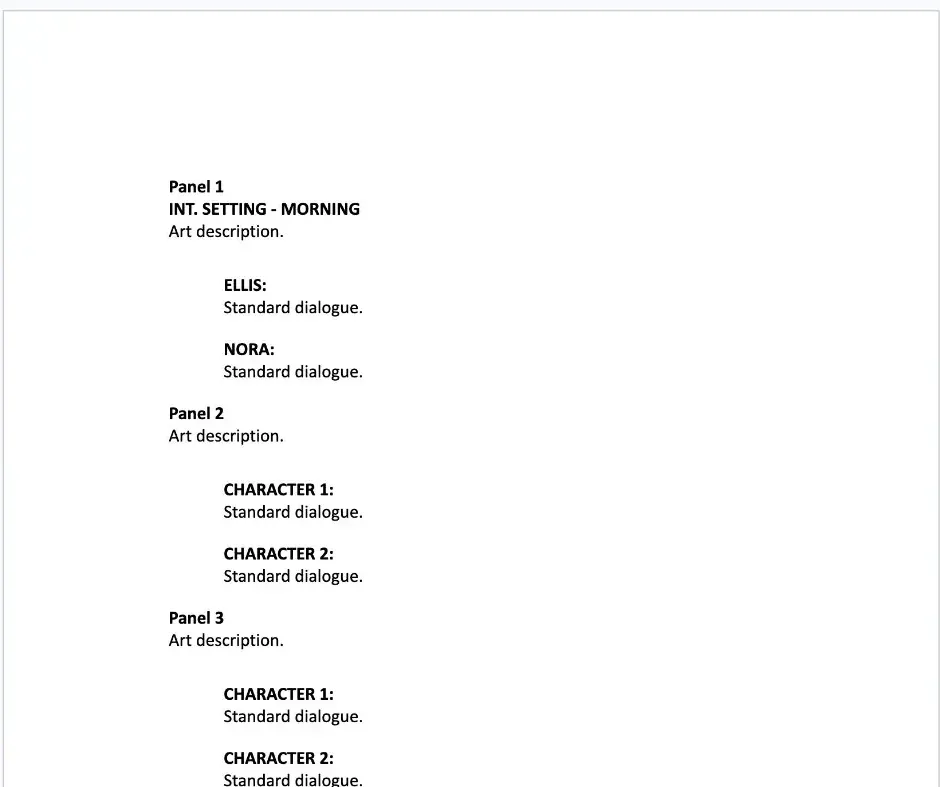
Quick Craft
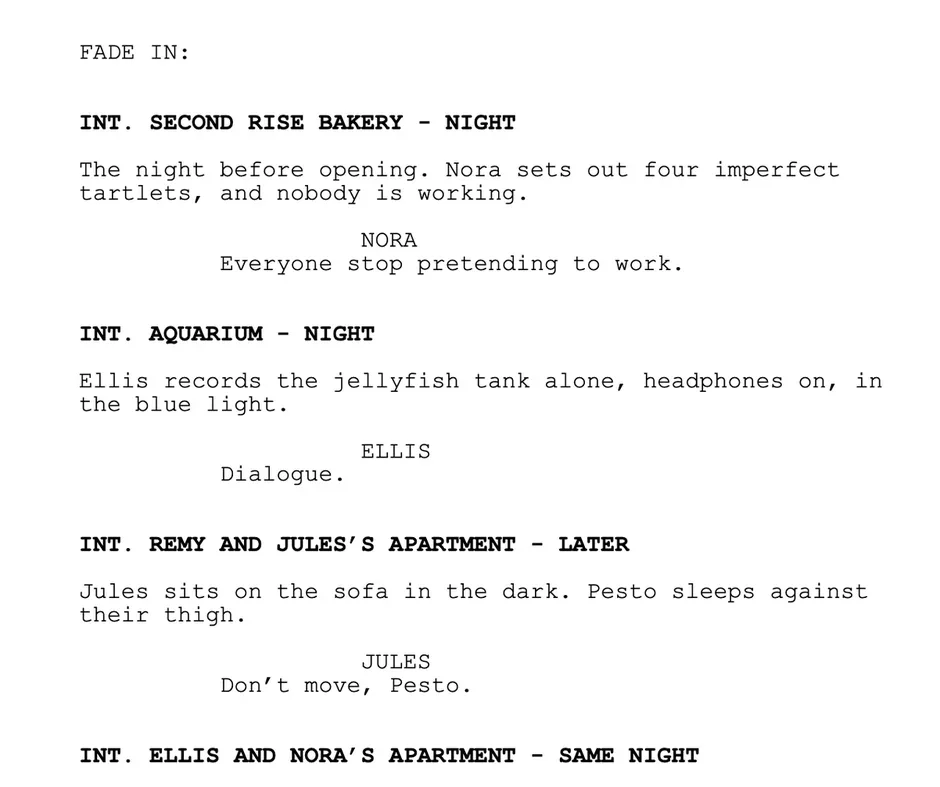
- Open your outline or treatment.
- In Quick Craft, select your outline or treatment and To Script, then click Quick Craft.
- Quick Craft reformats your scene headings, action, character names, and featured dialogue into an initial script draft in a new document.
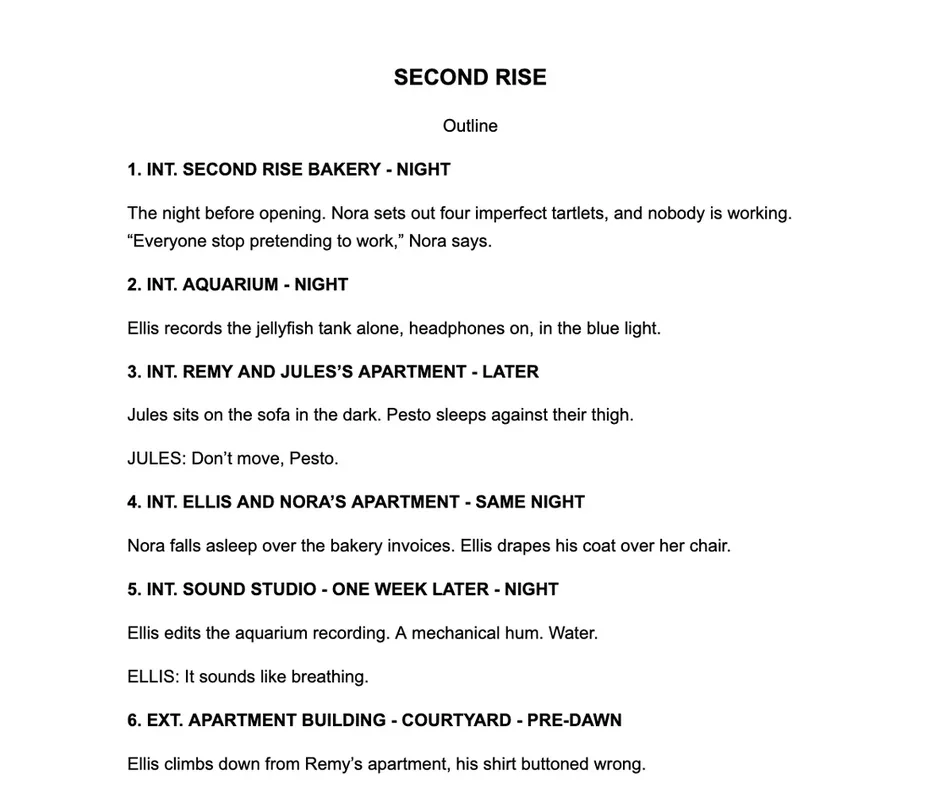
Quick Post
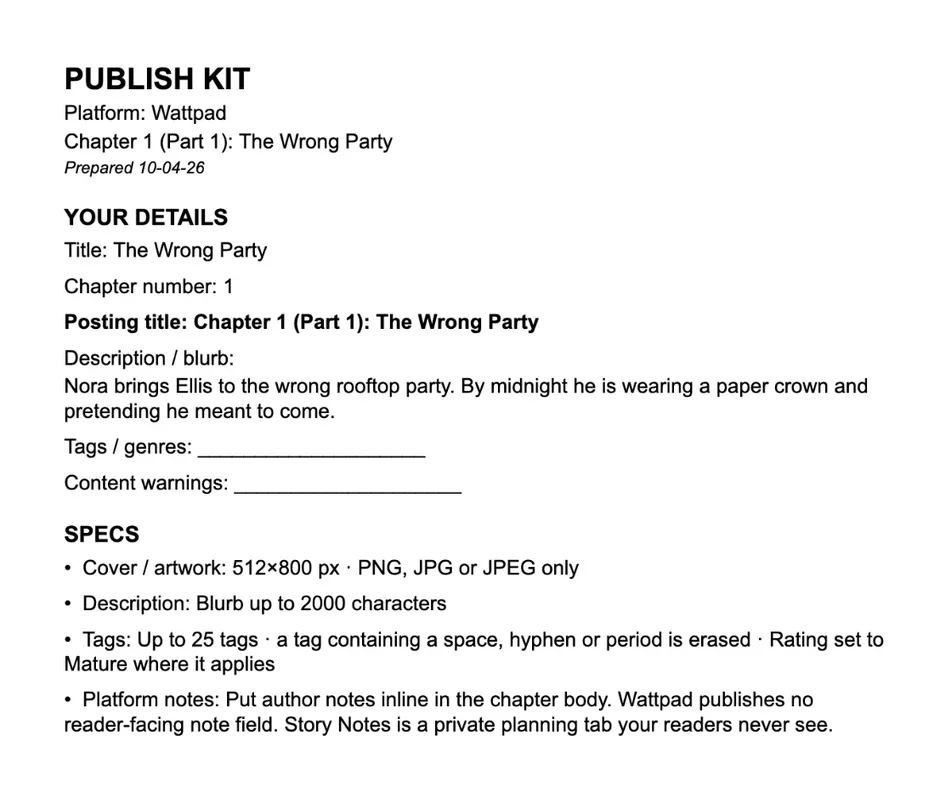
Built for ScriptChamp’s self-publishing formats: Web Novel, Webcomic, and Podcast.
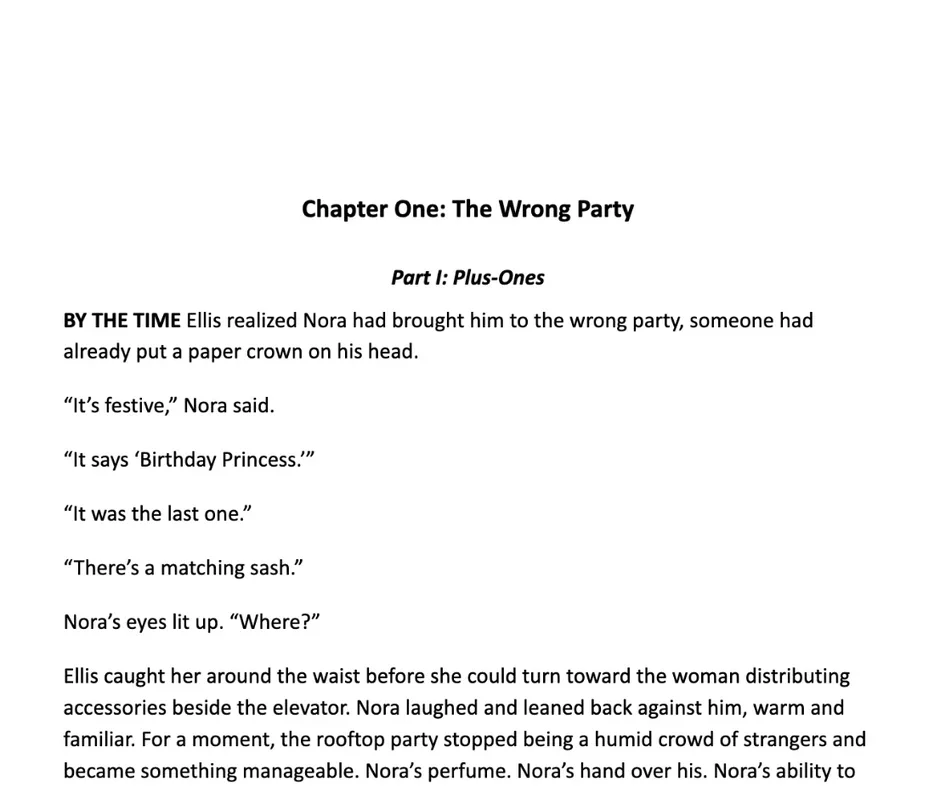
- Open your finished chapter or episode.
- Click Quick Post, choose your platform, then click Quick Post again.
- Quick Post reformats key script elements into a Publish Kit in a new document, so you can quickly prepare your work for digital platforms.
ScriptChamp Pro
Quick Adapt
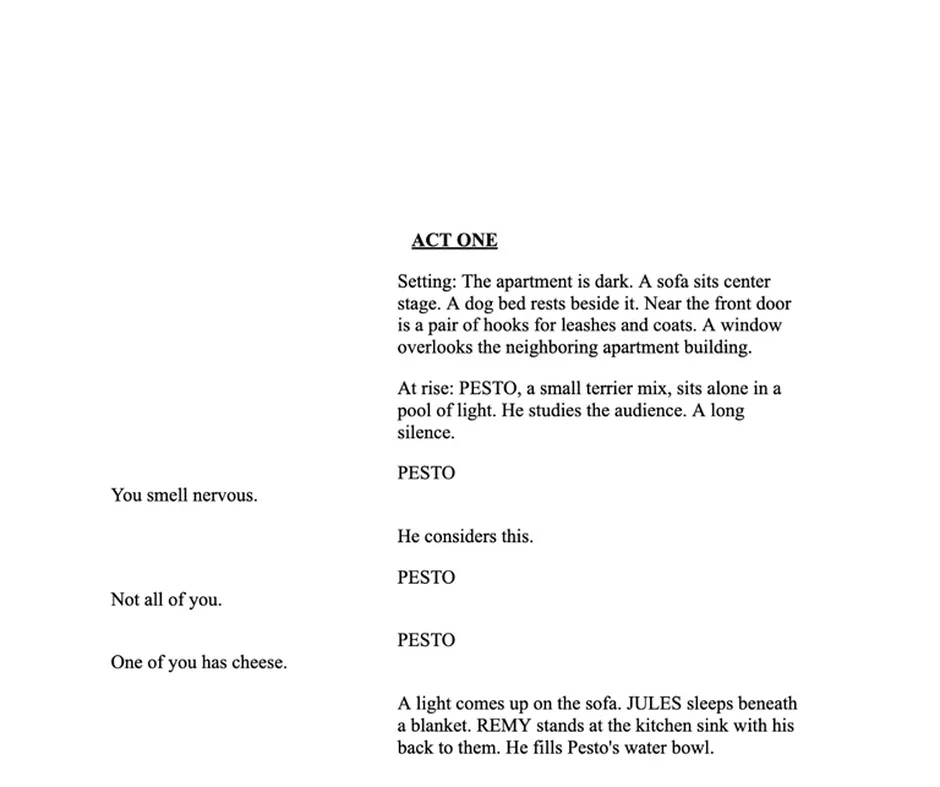
- Open your finished script.
- In Quick Adapt, select the new format for your script and click Quick Adapt.
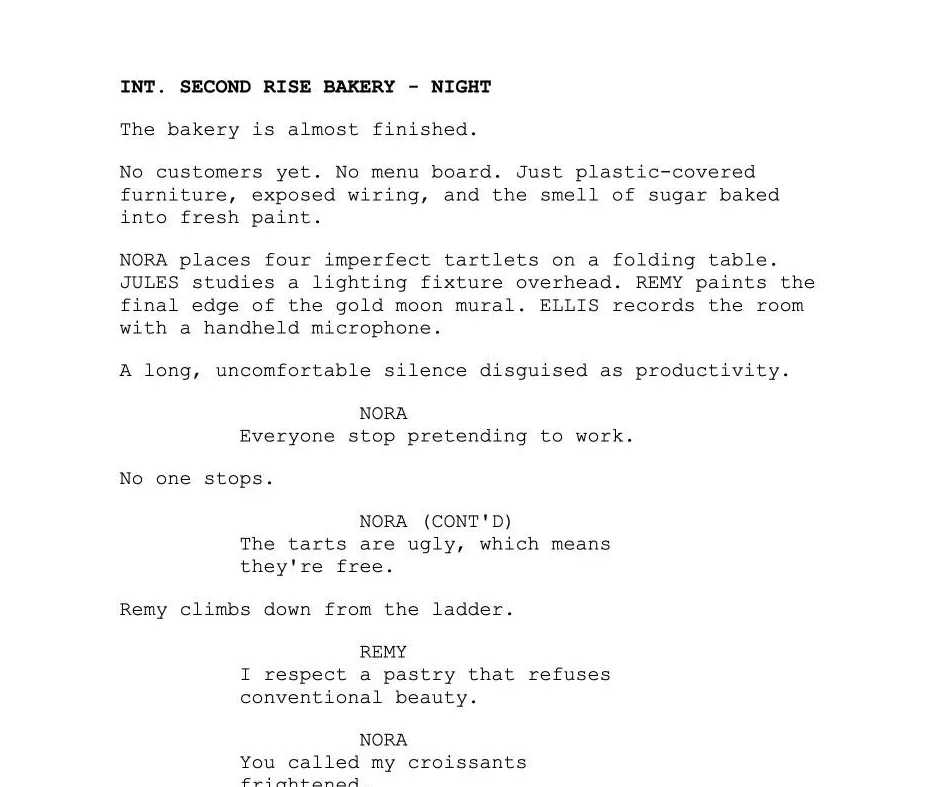
- Quick Adapt reformats key elements of a finished script according to a new medium’s formatting standards. The adapted script opens in a new Doc. Your original stays as it was.
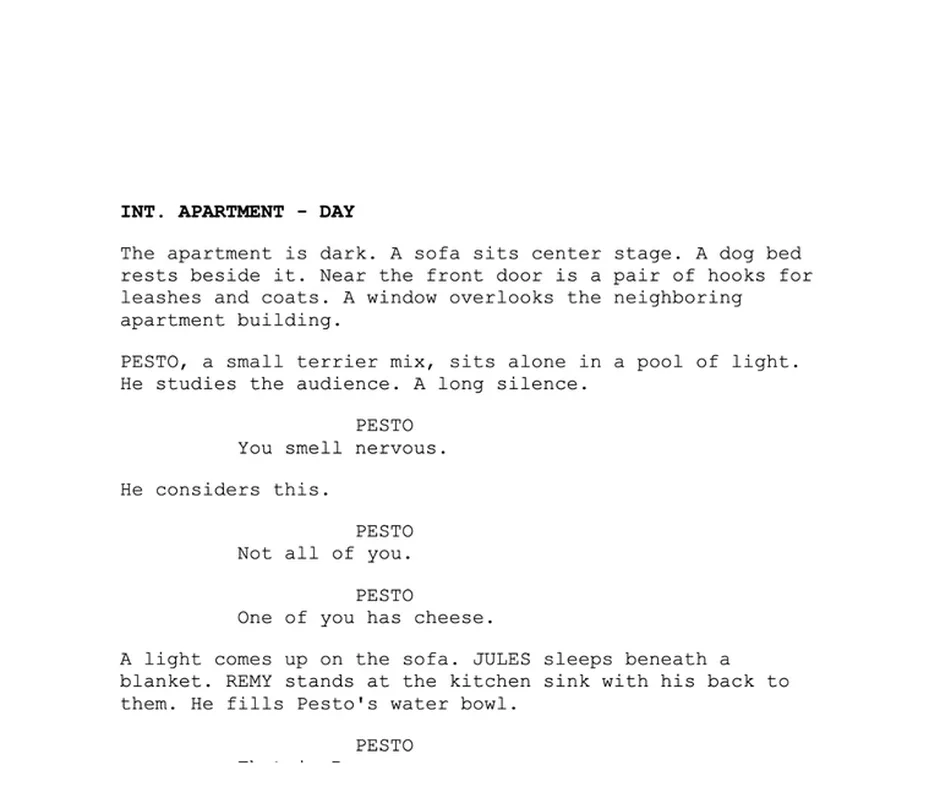
Quick Translate
- Open your script.
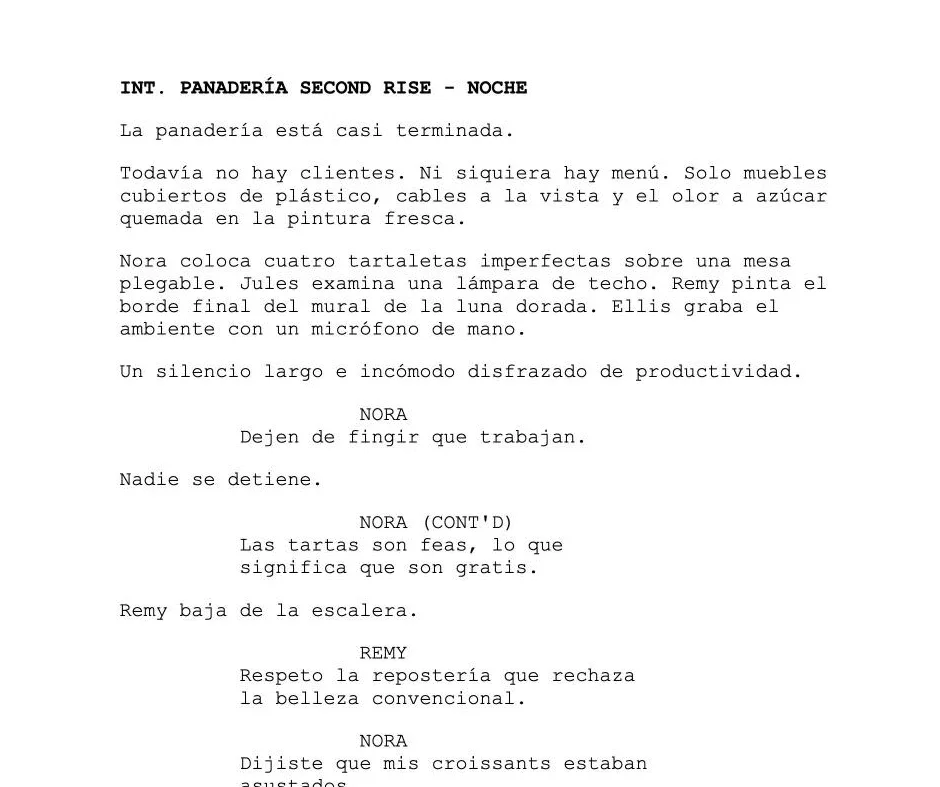
- In Quick Translate, select the new language for your script and click Quick Translate.
- Quick Translate works with Google Translate to create the translated script in a new Doc, keeping your characters’ names and all ScriptChamp formatting. Your original stays untouched.
Still stuck?
More guides and videos are available on Instagram and TikTok.
Read the FAQ, or write to support@script-champ.com.
We champion writers.
Install ScriptChampTry ScriptChamp Pro free for 7 days. No credit card required.